Upcoming
Upcoming shows the next 14 days day by day, and the target dates of projects with their progress and health.
Upcoming covers the next 14 days, from tomorrow on (Next 14 days). Today has its own view: see Today.
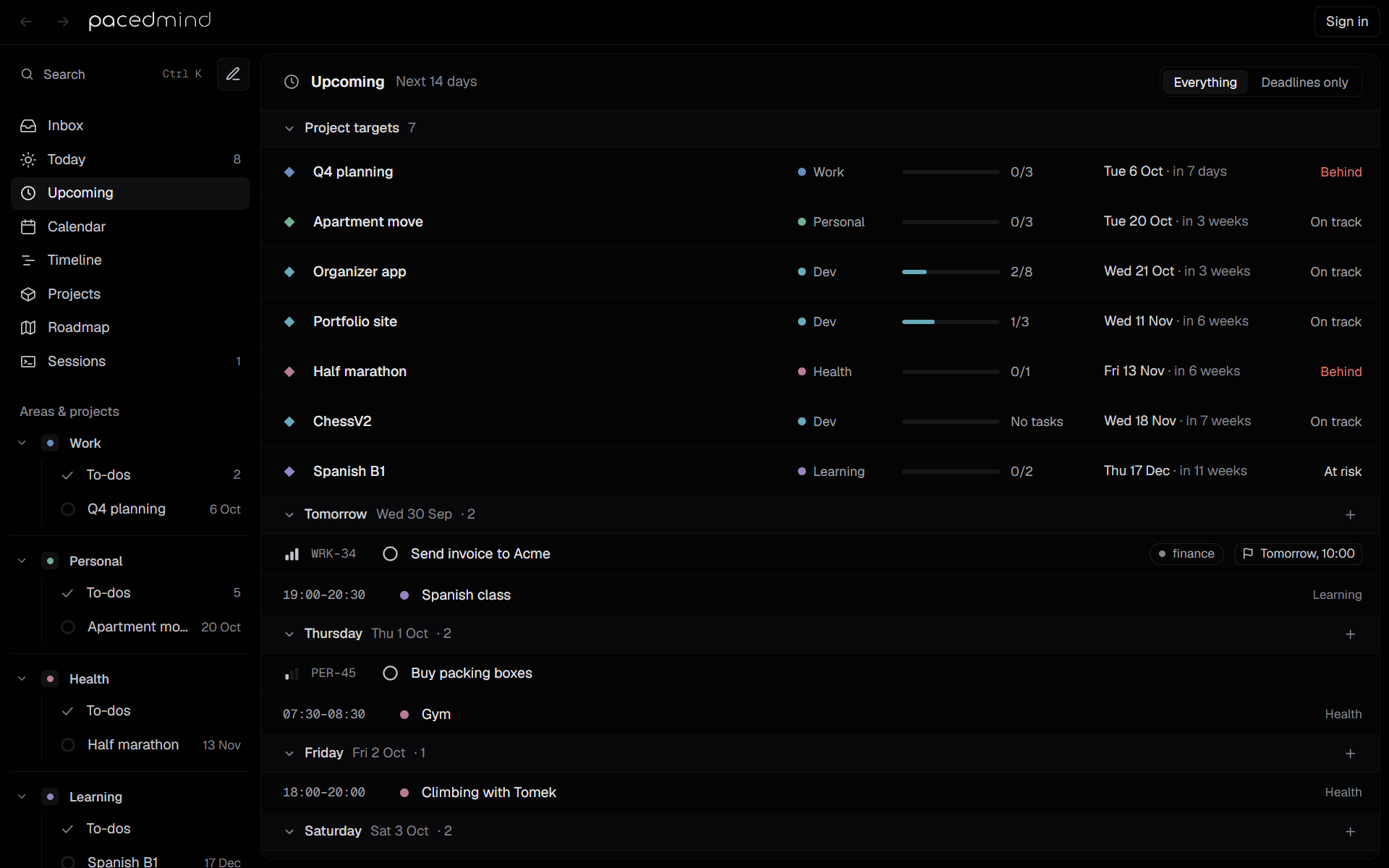
Project targets
The first group, Project targets, lists every project with a target date, soonest first. Each row shows:
- the project's diamond, name and area;
- its progress: a bar and the done and total tasks, such as 3/5 (No tasks when it has none);
- on wide windows, a small 90-day timeline with the target's position;
- the target date and how far away it is, such as in 12 days;
- its health.
| Health | Meaning |
|---|---|
| On track | Done tasks keep pace with the time passed since the project started, or every task is done. |
| At risk | The share of time passed is ahead of the share of tasks done by more than 15 points. |
| Behind | Ahead by more than 30 points, or the target date has passed with open tasks. |
Health compares two shares between the project's start date and its target date: the time gone and the tasks done (canceled tasks don't count). A project without a start date is always on track until its target passes. Finished projects drop off the list once their target date has passed.
Select a row to open the project.
Days
Each of the next 14 days with anything on it gets a group: Tomorrow, then the weekday names, with the date and a count. A day lists, in this order:
- the target dates of projects that end that day (Q4 planning target date, with 3 of 5 tasks done);
- tasks due that day, sorted by time, then by priority;
- tasks planned for that day that aren't also due then;
- the day's calendar activities.
Select a day's name to collapse it. The + on a day adds a task planned for that day. Select an activity to change or delete it.
Everything or deadlines only
The switch in the header chooses what the days show:
- Everything: deadlines, planned tasks and activities.
- Deadlines only: only tasks due that day. Project targets stay.
With nothing ahead, the view says Nothing coming up in the next 14 days (or No deadlines in the next 14 days) and reminds that tasks with a due or planned date show up here.
Today
Today lists what's overdue, due today and planned for today, together with the day's calendar activities.
Calendar: month
The month calendar shows deadlines, planned days, activities and project targets; click a day to add a task on it, move tasks between days by dragging, and plan tasks that have no date from the No date panel.