Calendar: week
The week view lays out activities, your tasks, auto-planned focus blocks and agent sessions hour by hour, from midnight to midnight; drag tasks between hours and days, and see what's left to place.
The week view shows one week, Monday to Sunday, from midnight to midnight. It combines the fixed calendar, the tasks you put at a time, the focus blocks the auto-planner suggests for the rest, and the agent sessions that ran, and lets you drag tasks to the hour and day you mean to work on them.
Open it with Week in the calendar's header, by selecting a day number in the month view, or with Go to Week in the command menu.
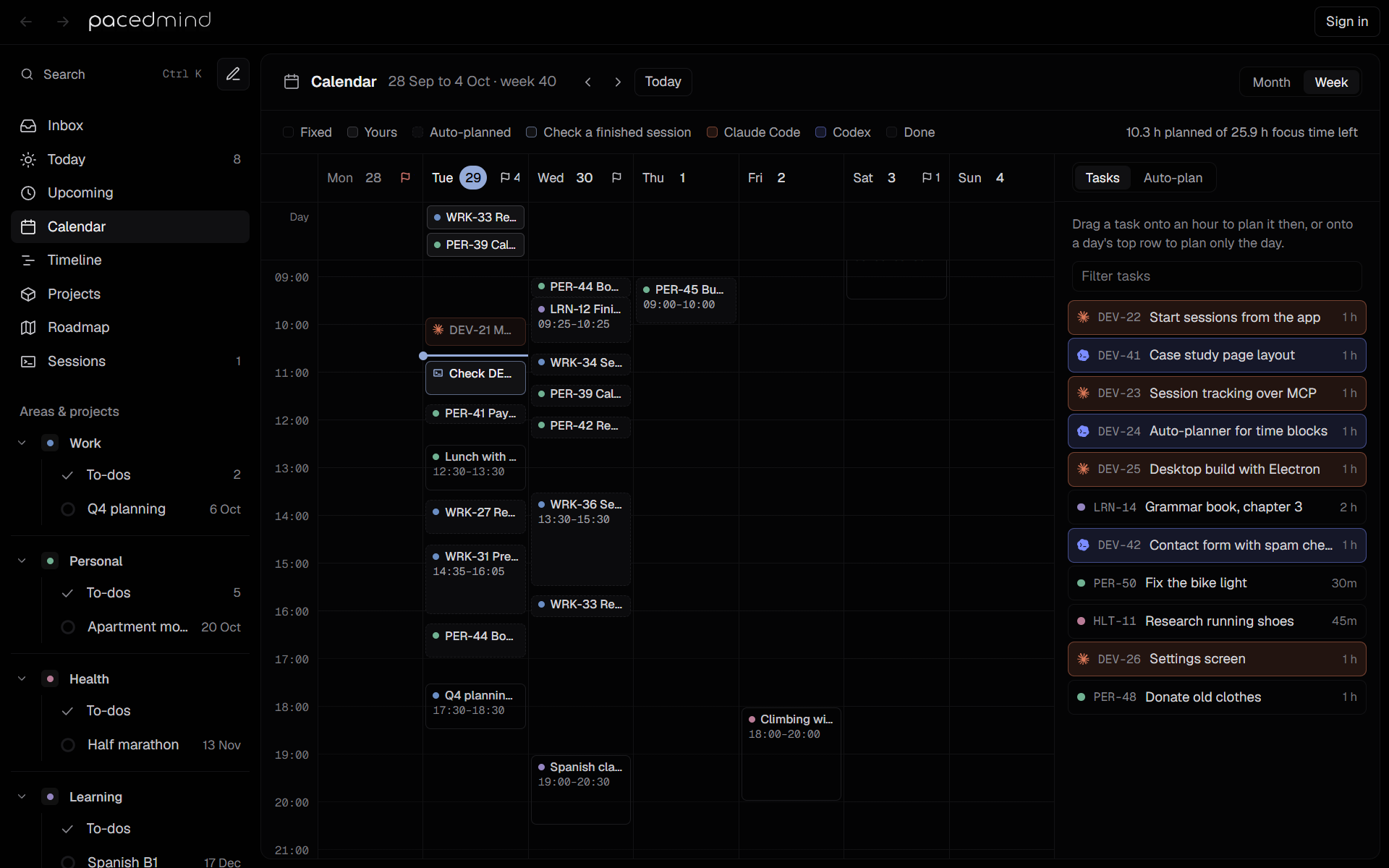
The header
- Calendar, the dates and the ISO week number, such as 21 to 27 Sep · week 39.
- The arrows (Previous week, Next week) and Today, which returns to the current week.
- Month and Week, to switch views.
The bar under the header is the legend, and states the week's load: 22.5 h planned of 26 h focus time left (for the current week) or … of … h focus time (for a later week).
| Legend | Meaning |
|---|---|
| Fixed | Calendar activities. |
| Yours | Tasks you put at a time, as long as their estimate. |
| Auto-planned | Focus blocks the auto-planner suggests for your other tasks, such as WRK-31 Prepare slides for Q4 planning, with a dashed outline. |
| Check a finished session | A 45-minute block to review work an agent finished, such as Check DEV-21. It has a terminal icon and a navy outline. |
| Done | Finished tasks and the sessions that worked on them are dimmed, so what's left stands out. Hover one to read it. |
| Claude Code, Codex | Agent sessions, as blocks from when they started to when they ended, lightly tinted in the agent's color and marked with its icon. A running session's block grows until it ends and has a pulsing dot. Tasks handed to an agent that you put at a time have the same tint. |
The grid
- Each day's header shows its name and date, with today's date in navy. A flag shows the day's open deadlines: the time of a single deadline that has one, otherwise their count, or 2 missed on a past day, in red when late.
- The hours run from 00:00 to 24:00. The view opens a little before the current time in the current week, and just before the work hours in other weeks; scroll for the rest of the day.
- Days outside the work days are shaded, and so are the hours outside the work hours.
- The Day row under the headers holds the tasks planned for a day without a time. It shows while a day has one, or while you drag a task.
- A navy line marks the current time.
- Overlapping blocks sit side by side. Blocks in the past are faded.
- Hover a block for its title and time. Select a task's block, a check block or a session to open the task's details, and a fixed block to open its activity, to change or delete it.
Drag tasks
Drag with the mouse; blocks land on the quarter hour, and a dashed outline shows where the task will go. Esc cancels a drag. On a phone, a tap opens the task.
- Onto an hour: the task is planned for that day at that time, as long as its estimate, such as DEV-22 is planned for Thu, 1 Oct at 10:15. The auto-planner leaves it there and plans your other tasks around it.
- An auto-planned block: dragging it puts its task at the time you drop it, and it becomes yours.
- The top or bottom edge of one of your blocks: moves its start or its finish, and the other edge stays where it is (DEV-22 starts at 09:30 now, DEV-22 finishes at 12:00 now). That changes the task's estimate; a block stays at least 15 minutes long. Grabbed in the middle, the block moves whole.
- Onto the Day row: the task keeps the day and loses its time, so the auto-planner places it again.
- Onto the Tasks list: the task loses its planned day (DEV-22 isn't planned for a day now).
Activities, check blocks and agent sessions don't move.
The Tasks list
Tasks, in the panel on the right, lists the open tasks that aren't on this week yet, most urgent first: the ones without a planned day, and the ones whose planned day passed (with that day in red). Each shows its key, title and estimate; tasks handed to Claude Code or Codex carry the agent's tint. Filter tasks narrows the list by key or title. Drag one onto an hour or onto a day's row to plan it; select it to open its details.
Add a task on a day
Click the free space in a day's column, or the day's header (New task on Wed, 30 Sep), to open quick add with the task planned for that day. While the pointer is over a day's column, the day's header lights up and shows a + in place of its deadline flag. On a phone, tap the free space of the day shown.
A new task gets only the day, so the half hour clicked doesn't matter for it: the auto-planner places it in free focus time from its planned day on, until you drag it to an hour. Switched to Activity, the dialog starts the activity at the half hour that was clicked, such as Wed 30 Sep, 16:00. A click on a fixed activity opens the activity instead, and a click on a header's deadline flag doesn't add anything.
The Auto-plan panel
Auto-plan, next to Tasks in the panel on the right, explains the plan. The panel hides while a task's details are open.
- Show auto-planned blocks hides and shows the focus blocks. When off, the panel says Auto-plan is off. Only fixed events, your own blocks and agent sessions are shown.
- The status line: Planned at 14:05 · 6 tasks in 9 blocks, or Planned at 14:05 · nothing to place this week. For a past week: This week is over, so there is nothing left to plan.
- Up to four notes on what the planner did, such as DEV-21 finished, so 45 min to check it was added today at 15:00, WRK-27 is overdue, planned today at 09:00, or Split WRK-31 into 2 blocks.
- Rest of this week (or This week): planned hours of the available focus hours, with a bar split by area color and the hours per area.
- Didn't fit this week: tasks that need more time than is free, such as WRK-36 Send the Q4 plan to the team needs 2 h and there's no free slot left this week. Select one to open it.
- Rules: the work hours and break from Settings → Planning, and the planner's fixed rules, with Change to open that page.
- Replan the week reloads the week and plans it again from the current time.
The plan is recomputed every time the view loads and after every drag. Focus blocks aren't stored: they change when the tasks change, and a dragged one becomes a task at a time. See The auto-planner.
Weeks ahead
The planner fills the days from now on in order, so a later week only gets what the weeks before it leave over. A later week states its full focus time. Its Didn't fit this week list names only tasks meant for that week: those planned before its end, or, without a planned day, with no deadline or a deadline before its end.
Calendar: month
The month calendar shows deadlines, planned days, activities and project targets; click a day to add a task on it, move tasks between days by dragging, and plan tasks that have no date from the No date panel.
Timeline
The timeline shows areas, projects and tasks as bars over time, which you scroll and zoom freely, down to a day's hours. Click a day to add a task, drag a bar's edges to change when it starts or is due, drag the bar to move it, and draw dependencies between tasks.