Calendar: month
The month calendar shows deadlines, planned days, activities and project targets; click a day to add a task on it, move tasks between days by dragging, and plan tasks that have no date from the No date panel.
Calendar opens on the current month. It shows every task with a date, the calendar activities and the projects' target dates, and lets tasks move between days by drag and drop.
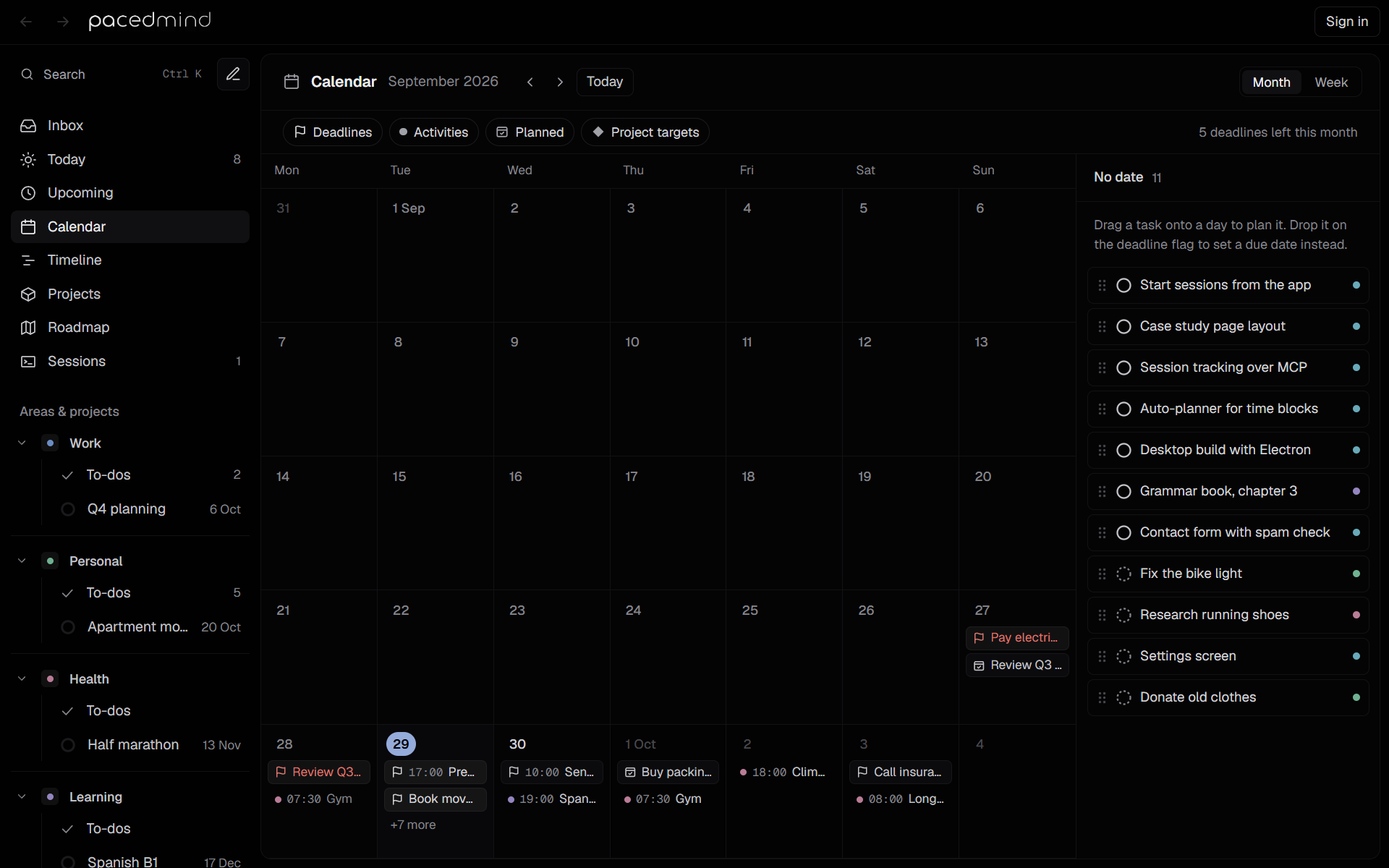
The header
- The month and year, such as September 2026.
- The arrows (Previous month, Next month) and Today, which returns to the current month.
- Month and Week, which switch between this view and the week view.
The bar under the header has four filters, each shown or hidden with a click:
| Filter | Shows |
|---|---|
| Deadlines | Tasks on their due date, with a flag. |
| Activities | Calendar activities, with the area's dot and the start time. |
| Planned | Tasks on their planned day, with a calendar check mark. |
| Project targets | Projects on their target date, with a diamond. |
Its right side summarizes the month's deadlines: 3 deadlines left this month for the current month, No deadlines in October for a later one, and for a past month either 2 overdue from August, in red, or Nothing left open from August.
The grid
The grid runs from Monday to Sunday and shows five or six weeks. Days outside the month are shaded, and today's number is navy. Select a day's number to open that week in the week view (Open this week).
Each day lists its items in this order: deadlines, project targets, planned tasks, activities, then finished tasks, crossed out. Deadlines on today are highlighted and overdue deadlines are red. A task whose planned day is its due day shows once, as its deadline. Canceled tasks don't show.
Click an activity to open it, to change or delete it.
When a day holds more than fits, +3 more opens the whole day in a small panel; Esc or its × closes it.
Add a task on a day
Click a day's free space, or the + that appears in its corner while the pointer is over the day (New task on Wed, 30 Sep), to open quick add with the task planned for that day, such as Planned Wed 30 Sep. The panel that +3 more opens has the same + next to its ×. On a phone, tap the day's free space.
A click on a task, an activity or a project target doesn't add a task, and neither does a click that only closes an open menu or panel. A time typed in the title without a date, such as 15:00, is on the clicked day too.
The task menu
Click a task in the grid, or focus it and press Enter or Space, to open its menu. The menu names the task and offers:
| Item | Result |
|---|---|
| Open task | Opens the details panel. |
| Change date | Opens the date picker. For a planned task, the day chosen moves the planned date at once. For a deadline, choose the day, then a time (or Done for none) to move the due date; a typed date with Enter moves it at once. Esc or a click outside leaves it where it was. |
| Plan for a day | For tasks from the No date panel: gives the task a planned day. |
| Remove due date or Remove planned date | Clears the date the chip stands for. |
A task planned for the same day as its deadline shows as one deadline chip, and that chip stands for both dates: Change date moves both, and Remove due date clears both. | Delete task | Asks Delete WRK-12? Click again; the second click deletes the task. |
Finished tasks offer only Open task and Delete task.
Drag and drop
Drag a task to another day to move it:
- A deadline moves its due date to that day and keeps its time.
- A planned task moves its planned day.
- A deadline that is also the planned day moves both dates together.
While a planned task, or a task from the No date panel, hovers over a day, a Due flag appears in the day's corner (Drop here to make it the due date). Dropping it on the flag makes that day the task's deadline. A planned task dropped there also stays planned for that day.
Each move is confirmed with a message, such as WRK-12 is now due Fri, 2 Oct or Planned WRK-12 for Fri, 2 Oct. Finished tasks can't be dragged.
The No date panel
The No date panel on the right lists open tasks that have neither a due date nor a planned date, with their count, the most active and urgent first (up to 15, then and 4 more). Its hint reads Drag a task onto a day to plan it. Drop it on the deadline flag to set a due date instead.
- Drag a task from the panel onto a day to plan it, or onto the Due flag to give it a deadline.
- Drag a dated task onto the panel to remove the date it was dragged by (both dates, for a deadline chip that is also the planned day). While dragging, the panel shows Drop here to remove the date. A task that loses its last date says WRK-12 has no date now.
The panel hides when every open task has a date and while a task's details are open. It opens again during a drag, to take a task.
Upcoming
Upcoming shows the next 14 days day by day, and the target dates of projects with their progress and health.
Calendar: week
The week view lays out activities, your tasks, auto-planned focus blocks and agent sessions hour by hour, from midnight to midnight; drag tasks between hours and days, and see what's left to place.