Timeline
The timeline shows areas, projects and tasks as bars over time, which you scroll and zoom freely, down to a day's hours. Click a day to add a task, drag a bar's edges to change when it starts or is due, drag the bar to move it, and draw dependencies between tasks.
The Timeline lays out the work over time, grouped by area: each project and each task is a bar. It shows at a glance what runs when, what waits for what, and how much of your own time each day holds.
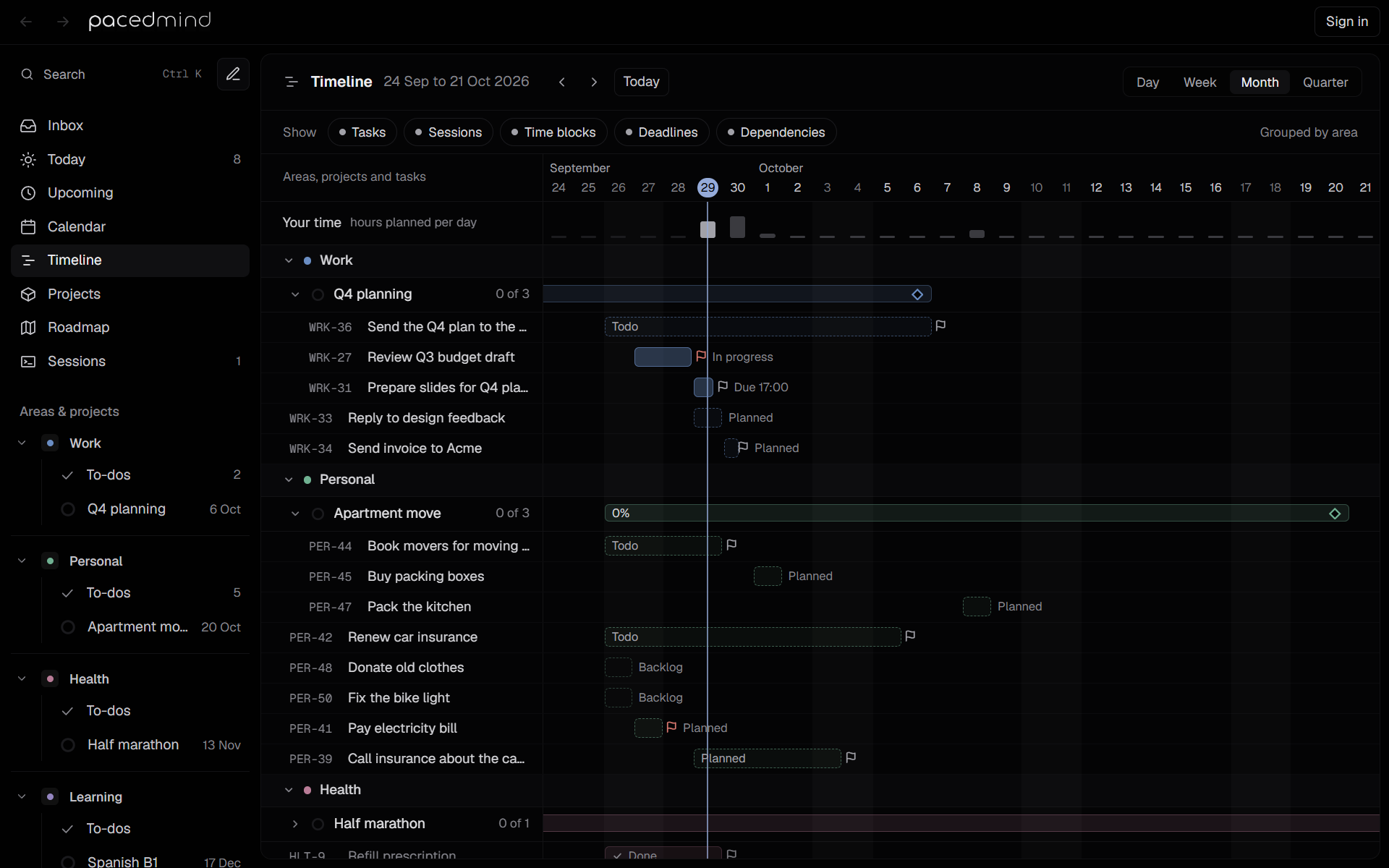
The header
- The days in view, such as 21 Sep to 18 Oct 2026, or one day, such as Tuesday, 29 September 2026.
- Earlier and Later move most of a screen; Today brings today back into view.
- Day, Week, Month and Quarter zoom to fit 1, 7, 28 or 91 days in view. Month is the default.
Moving around and zooming
The timeline scrolls freely in every direction, with no jumps between ranges: scroll sideways with a touchpad or Shift and the wheel, or drag the days with the mouse anywhere but on a bar, and the view follows in any direction. As you get near either end of what's loaded, the next weeks load around the days in view.
Zoom with the wheel over the days at the top, or anywhere with Ctrl (on macOS ⌘) held, or with a touchpad's pinch: the day under the pointer stays where it is. After zooming this way, no zoom button is pressed. The zoom is kept in the page's address.
Zoomed in far enough, as in Day, each day shows its hours, with a line at each labeled hour, and the day's name stays at the left while its hours scroll by. Day puts now a third of the way in. With fewer days in view, the weekday names appear next to the dates; further out, the month's name appears above its first day, and in the widest zooms only Mondays are numbered.
The bar under the header chooses what to Show:
| Layer | Shows |
|---|---|
| Tasks | The task bars. |
| Sessions | Thin lines under the task bars for the agent sessions that ran on them. |
| Time blocks | The Your time row at the top. |
| Deadlines | A flag at each deadline. |
| Dependencies | The lines between tasks that wait for each other. |
Rows
The left column lists Areas, projects and tasks:
- Your time (hours planned per day): one small bar per day. For today and later days, it's the focus time the auto-planner plans for you; for past days, the estimates of the tasks finished that day, except those set to Claude Code or Codex under Done by. A full bar is a full working day. Hover a bar for the hours.
- Areas, showing each area's picture or icon, or a colored dot when neither is set. A separate Inbox group holds tasks without an area. Select an area's name to collapse it.
- Projects, with a progress ring and done of total. A project row expands to its tasks; it starts expanded when any of its tasks has a date or a session.
- Tasks, with their key and title. Select a task's row or bar to open its details.
Open tasks always have a row. Finished tasks appear only while their bar or a session is in view; canceled tasks never appear.
Add a task on a day
Click a day in the header (New task on Mon, 5 Oct) to open quick add with the task planned for that day. The other rows add one as well, on the day clicked:
| Row | The new task |
|---|---|
| A project | Goes to that project, and its area. |
| An area | Goes to that area. The Inbox group's row leaves it without an area. |
| Your time | Only gets the planned day. |
While the pointer is over one of these rows, a dashed box with a + marks the day, and the header shows the same day lit. A task's row still opens the task. On a phone, tap the day.
How bars are placed
A project's bar runs from its start date to its target date. Without them, it spans its tasks. The filled part shows the share of done tasks, and a label shows the percentage, or Starts 5 Oct for a project that hasn't started yet. A hollow diamond marks the target date.
A task's bar:
- starts on its planned day; without one, on the day its first session started, or else on the day it was created. A task that hasn't started, has no planned day and waits for other tasks starts after them.
- ends at its deadline, including the time of day. Without a deadline, the estimate sets the length, counting 8 hours per day, and at least one day.
Bars outside the loaded weeks show a small date at the edge, such as ‹ 12 Sep or 30 Oct ›. A navy line marks now; weekends are shaded.
How bars look
The color is the area's or the project's; the fill and the outline show the state:
| Look | State |
|---|---|
| Faint, with a check mark | Done |
| Navy outline, and a navy dot after the bar | An agent finished; waiting for your review |
| Solid fill | In progress, in review, or a session is running |
| Dashed outline, no fill | Backlog |
| Dashed outline, light fill | Todo |
The label inside or next to the bar gives the state in a few words: In progress, Claude Code, running, Finished 12:22, Partly done 12:22, Blocked 12:22, Waits for 21 and 22, Waits for you, Ready, Planned, Due 17:00. Hover the bar for the full sentence, such as When you mark DEV-21 done or Finished 12:22, waiting for you.
The Sessions layer draws each session as a line under the bar: in the area's color while it runs, navy when it finished and waits for review, faded when done, and gray when it was closed or failed. Hover it for the agent, the times and the state.
Change dates by dragging
Open tasks can be changed on the bars themselves. Hovering a bar shows a grip at each end.
| Drag | Changes |
|---|---|
| The start edge (Drag to change when it starts) | The planned date. |
| The end edge (Drag to change when it's due) | The due date. A deadline keeps its time of day. |
| The whole bar | Both: the planned date and the due date move by the same number of days. |
Bars move in whole days and never get shorter than one day. While dragging, the label shows the new date, such as Starts Tue, 22 Sep or Due Fri, 25 Sep. Releasing saves it, with a message such as WRK-31 is now due Fri, 25 Sep or Moved WRK-31 to Tue, 22 Sep.
A bar without a deadline ends where its estimate runs out. Dragging its start edge then also makes that end its deadline, so the end stays where it was.
A click without a drag opens the task.
Dependencies
A dependency makes one task wait for another, such as a release that waits for its tests. Dependencies only order the work: nothing starts by itself. When a task's turn comes, start its agent session, or pick it up yourself when it's yours.
The task the other one waits for counts as finished once it's Done or In review. When its agent handed it back Partly done or Blocked, the tasks that wait for it keep waiting until you mark it done. See Partly done or blocked.
On the timeline, a waiting task that hasn't started and has no planned day starts after the tasks it waits for. Its label says where it stands: Waits for 22, Waits for you after a partly done or blocked hand-back (When you mark DEV-21 done on hover), or Ready once everything it waits for is finished.
Dependencies show elsewhere too:
- the Roadmap's task order names what each task waits for, such as After DEV-19, DEV-21. See Task order;
- Sessions names a task that waits for the selected session's task, under Waits for it:, with Start session. See Buttons;
- agents read them in
get_task(Waits for: and Before:), andget_next_taskoffers the first open task of a project whose dependencies are finished. They add and remove dependencies withconnect_tasksanddisconnect_tasks. See Tasks.
Draw a dependency
- Hover an open task's bar, with the Dependencies layer on. A small dot appears before its start and after its end.
- Drag from a dot to another task's row:
- from the end dot (Drag to a task that waits for this one): the other task waits for this one;
- from the start dot (Drag to a task this one waits for): this task waits for the other one.
- Release. A dashed navy line follows the pointer while dragging. The message confirms the new dependency, such as DEV-23 now waits for DEV-22.
The line turns gray and a note explains why when a dependency isn't allowed:
| Note | Rule |
|---|---|
| DEV-23 already waits for DEV-22 | The dependency exists. |
| DEV-23 is done already | Finished and canceled tasks can't start waiting. |
| … are in different projects. Dependencies stay within one project. | Both tasks must be in the same project, or both outside any project. |
| … already waits for …, so this would make a loop | No circles. |
Remove a dependency
Click a dependency line. A menu names it, such as DEV-23 waits for DEV-22, and offers Remove dependency. The message confirms: DEV-23 no longer waits for DEV-22.
Dependencies for your own tasks
Tasks that are yours can have dependencies too, to show what they wait for: the bar says Ready when everything before it is finished.
Calendar: week
The week view lays out activities, your tasks, auto-planned focus blocks and agent sessions hour by hour, from midnight to midnight; drag tasks between hours and days, and see what's left to place.
Projects
The Projects page lists every area and project with progress, open tasks, target date, agent and folder; area and project pages list their tasks.