Projects
The Projects page lists every area and project with progress, open tasks, target date, agent and folder; area and project pages list their tasks.
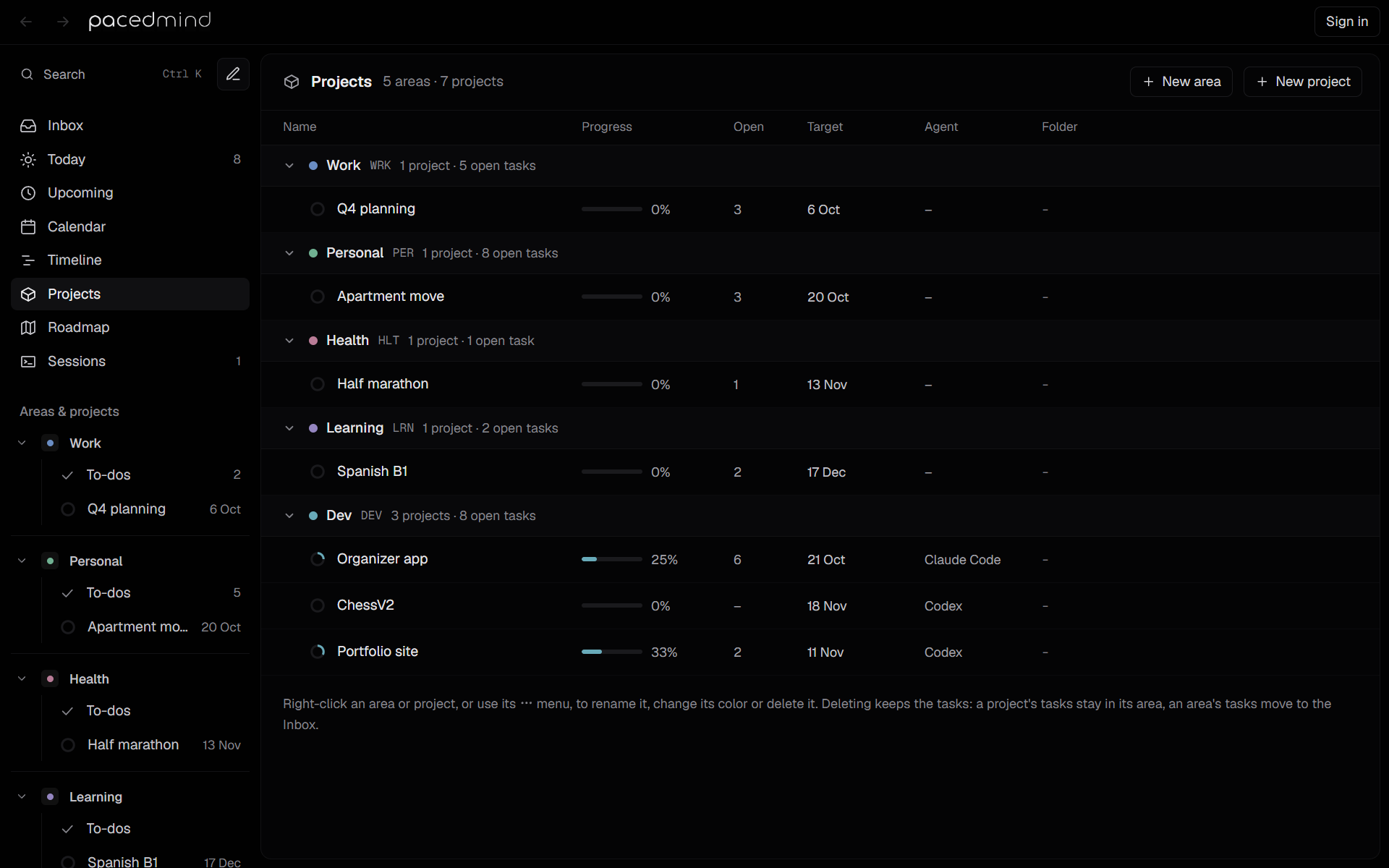
The Projects page is the overview of all areas and their projects. Its header counts them, such as 5 areas · 7 projects, and has New area and New project.
The sidebar uses the same area groups and saved order. Reorder groups by dragging their headings in the sidebar, or with Move up and Move down in an area's sidebar menu.
The table
Each area is a row with its color, name, key, and 2 projects · 9 open tasks. Select the arrow at its left to collapse it. Its projects follow, one row each:
| Column | Shows |
|---|---|
| Name | The progress ring and the project's name. Select the name to open its tasks. |
| Progress | A bar and the percentage of done tasks, not counting canceled ones. |
| Open | The number of open tasks. |
| Target | The target date. Select it to set or change it (Set date when empty). It turns red when the date has passed with open tasks. |
| Agent | The project's default agent. |
| Folder | The folder agent sessions work in. |
An area without projects offers New project in that area.
Manage areas and projects
Right-click an area or a project, or use its … button, for its menu. As the note under the table says, deleting keeps the tasks: a project's tasks stay in its area, and an area's tasks move to the Inbox. See Areas and projects for every menu item.
To add:
- New area adds a row to name the area (Area name, like Work or Health).
- New project asks for the area, then adds a row to name the project. The + on an area's row does the same for that area. PacedMind opens the new project afterwards.
When there are no areas at all, the page explains that areas group projects and tasks and offers New area.
Area and project task lists
Selecting an area or a project, in the sidebar or on this page, opens its task list:
- An area lists all its tasks, including those in its projects. The header shows the key and the number of open tasks.
- A project lists its tasks. The header shows the area and the target date, and has a Roadmap button.
Both group the tasks by status, in the order In review, In progress, Todo, Backlog, Done, Canceled, and sort them by priority, then by the project's task order; Display groups them by label or orders them another way (see Working with tasks). The Done and Canceled groups start collapsed. New task adds a task to the area or the project. See Working with tasks.
Timeline
The timeline shows areas, projects and tasks as bars over time, which you scroll and zoom freely, down to a day's hours. Click a day to add a task, drag a bar's edges to change when it starts or is due, drag the bar to move it, and draw dependencies between tasks.
Roadmap
The roadmap shows when each project runs and in which order a project's tasks come, and holds the project's session settings.