The task details panel
Every field of the task details panel, the Done when list, the agent session card with its plan, report and buttons, Request changes, answering the agent's questions, sub-tasks, and the task's activity history.
Clicking a task's title opens its details on the right side of the view: in task lists, on Upcoming, on the Timeline and on the Roadmap, from a focus block or a session lane in the calendar's week view, and through Open task in the month view's task menu. Changes save as they're made. The × button (Close details), a second click on the task, or Esc outside a text field closes the panel.
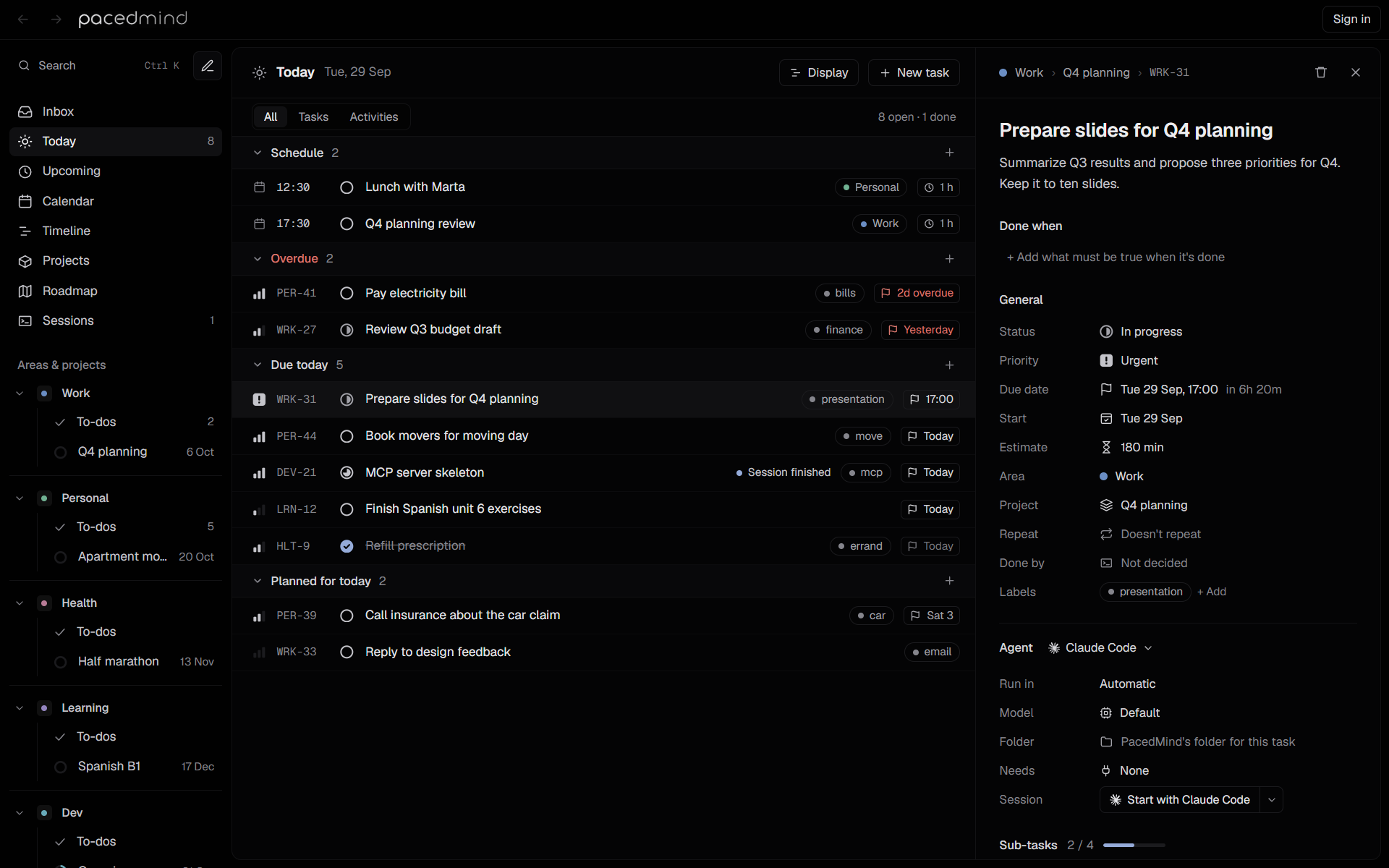
The header
The top line shows where the task lives: its area (or Inbox), its project (or No project) and its key. On the right:
- the trash button (Delete task), which asks Delete WRK-12? before deleting the task for good, with its sessions, the agents' reports and their screenshots;
- ×, which closes the panel.
Title and description
- Title: click to edit. Enter or clicking elsewhere saves it.
- Description: Add description…. It's Markdown and shows formatted: headings, lists, quotes, code blocks, bold and italic text, inline code and links to web pages, with line breaks kept as you typed them. You edit it where it shows: click anywhere in it and the cursor lands there. The Markdown marks, such as
**,#or a link's address, show only on the line the cursor is on. Ctrl+B and Ctrl+I (on macOS ⌘) make the selection bold or italic, and Ctrl-click (⌘-click) opens a link. It's saved when the cursor leaves the field. A long description shows its start, with Show more, until you click in it.
Floating note
In the desktop app, select Float task in the details header to keep the task in a separate window above other applications. The note shows live status and agent progress, and lets you mark the task done. Each task has its own note. See Floating task notes.
Done when
The Done when list, under the description, says what must be true when the task is finished, one checkable outcome per item. For the sample task DEV-21, one item is Requests without the token get 401. An agent that hands the task back answers each item in its report. See Done when; quick add's Done when chip adds the list when you create a task (Quick add).
- Type in + Add what must be true when it's done and press Enter to add an item.
- Click an item to edit it. Enter or clicking elsewhere saves it. An item left empty is removed.
- Hover an item and select its × (Remove this item) to remove it.
Blank items and repeats are dropped when the list is saved.
The icon in front of each item shows the agent's answer in the report on view (the newest, unless you page back: see Earlier reports), and the agent's note appears under the item. Hover the icon for its meaning:
| Icon | Meaning |
|---|---|
| A small dot | No report yet. |
| A filled circle with a check | Met |
| A half-filled circle | Partly met |
| A circle with a cross | Not met |
| A dashed circle | Not answered: the report has no answer for the item, for example because the item was added or reworded after it. |
With a report on view, the heading counts the items the agent met, such as 2 of 3 met. Items without an answer count as not met. An answer belongs to an item by its words, whatever the capitals or spaces: an item reworded after a report loses that report's answer, and the report shows the old wording with its answer instead (The agent's report).
Fields
General groups the planning fields and Done by. For agent tasks, a separate Agent section contains Computer (with more than one computer), Run in, Model, Folder, Needs, Session and Usage. When something would keep a session from starting where it goes, a line under Needs says so, as in quick add. The agent name beside Agent is a picker linked to Done by: changing either sets the agent for new sessions. Choosing You hides the agent controls. Earlier sessions and their usage remain under Session history.
| Field | Choices |
|---|---|
| Status | Backlog, Todo, In progress, In review, Done, Canceled. See Tasks. |
| Priority | Urgent, High, Medium, Low, No priority. |
| Due date | Add a deadline. A date and, optionally, a time. Shows the distance, such as in 3 days, in red when overdue. |
| Start | Pick when to work on it: the planned day, such as Wed 30 Sep, and optionally a time, such as Wed 30 Sep, 10:00. With a time, the task is a block at that time in the week view. |
| Finish | Only with a start time: when the block ends, such as 11:30 1 h 30 min. Pick another end from 15 minutes to 8 hours later, within the day; it sets the estimate. |
| Estimate | Without a start time: 15, 30, 45, 60, 90, 120, 180 or 240 minutes. |
| Area | Inbox, no area, or an area. |
| Project | Add to project: No project, or a project. Choosing a project also sets the area. |
| About | Only for a task outside a project: Link a project, a project of its area the task is about without being part of it. That project's page lists it under Related. See To-dos. |
| Repeat | Doesn't repeat, Every day, Every weekday (Monday to Friday), Every week or Every month. Marked done, the task comes back as a new one at its next date: its start and due date move on by the same number of days (a due date keeps its time), from its own date or, when that has passed, from today; without dates it's planned for the next one. Its sub-tasks come back unticked, and a message says so, such as WRK-34 comes back as WRK-37 on Mon, 5 Oct. The done task stops repeating, so marking it done again doesn't add another. |
| Done by | You (No agent session), Claude Code, Codex, or the project default, each with its icon or the agent's mark. See Who does a task. |
| Folder | For a task an agent does, in the desktop app: the folder its sessions work in, the task's own (own), the project's (project's) or the area's workspace (area's). Without any of them it reads PacedMind's folder for this task: an empty folder PacedMind makes for it in its data folder (hover over it for where). Click it to choose a folder in the system's folder dialog; × goes back to the project's or area's folder. When the project (or, outside projects, the area) has no folder on this computer but PacedMind found a copy of it here, Found here: and that folder follow, with Use, which makes it the project's folder here (see Areas and projects). |
| Computer | With more than one computer: the one its sessions go to, marked project or auto when the task doesn't choose one. Automatic, or a computer. |
| Run in | Automatic, a terminal, the agent's desktop app, or its cloud. |
| Model | For terminal sessions: Default, or the chosen model with its Thinking and Speed. Refresh list checks the models again. See Model, thinking and speed. Changes apply when a terminal session next starts or resumes, including when sending changes back. |
| Labels | The labels, and + Add: type a label and press Enter. Click a label to remove it. |
| Needs | For a task an agent does: None, or up to 10 MCP servers or connectors it needs. Open the searchable picker, select or deselect tools, and select Done to save the choices together. Each option lists the computers reporting it. Type a custom name and press Enter to add it. See What a task needs. |
| Session or Last session | The latest agent session, or a button to start one. An ended session is labeled Last session, so its agent stays distinct from the next session’s choice. See below. |
| Usage | Once an agent reported it: what all the task's sessions used, such as 262k tokens · 1 min working · 1 session. See What it used. |
The date fields open the date picker (see Dates): type a date, take a suggestion or pick a day on the calendar. Plan for a day closes once a day is picked; Due date stays open for its time: pick one, or Done for none. Clear appears once a date is set.
The Session field
What the Session field shows depends on the task:
- A session exists: the agent and the session's state and place, such as Claude Code finished in a terminal. Selecting it opens the session in Sessions. After a session ends or fails to start, the session card offers a new one.
- The task is yours: None, this one is yours. No session can start.
- Otherwise: Start with Claude Code (or Codex, the task's agent), which starts the session where the task runs. Its arrow (Choose agent and where it runs) offers Claude Code in a terminal, Claude Code in the Claude app, Claude Code on the web, Codex in a terminal, Codex in the Codex app and Codex cloud.
Choosing from the arrow saves the agent in Done by and the place in Run in, then starts the new session. Switching agents clears the previous agent’s model settings.
Starting confirms where the session went, such as Started DEV-22 in a new terminal or Opened DEV-22 in the Claude app. Send the first message there to start. See Start, resume and close sessions.
With Trust session folders off in Settings → Sessions, when Claude Code on this computer doesn't trust the folder the session would start in yet, a line under the button says so: Claude Code first asks whether you trust the folder: choose “Yes, I trust this folder” in its terminal. The message after starting ends with the same sentence. With it on, PacedMind answers that question as the session starts. See Trusting the folder.
The session card
Once a task has a session, a card under the Done when list shows its state:
| State | Card text |
|---|---|
| Running | Running in Claude Code since 14:05, or with the place: Running in the Claude app since 14:05, Running in Claude Code on the web since 14:05 |
| Running again after Request changes | Claude Code is working on your changes since 14:05, or after you answered its questions Claude Code is working with your answers since 14:05 |
| Running, the agent waits for you, with a navy dot | Claude Code is waiting for you in its terminal: “…”, Claude Code asks for your permission in its terminal: …, Claude Code asks you something in its terminal: …, Claude Code asks you: … or Claude Code stopped at a usage limit: …. See When the agent waits for you. |
| Running in a terminal, in a folder Claude Code doesn't trust yet, until the agent checks in | Claude Code is asking whether you trust this folder. Choose “Yes, I trust this folder” in its terminal. |
| Running, no word from the agent after 90 seconds | Claude Code hasn't checked in yet. It may be waiting for you in its terminal., or in a desktop app Opened in the Claude app. Send the first message there to start. After Request changes, the 90 seconds count from the request. |
| Finished | Claude Code finished at 14:40 · waiting for you |
| Finished, partly done | Claude Code handed back part of it at 14:40 · waiting for you |
| Finished, blocked | Claude Code got stuck at 14:40 · needs you |
| Done | Claude Code finished, marked done |
| Closed | Codex session closed before it finished (or Claude Code session closed before it finished) |
| Failed | Couldn't start: and the reason |
A question the agent asks with ask_user shows under the state line, with a field for your answer and Send answer. See Answer while it works.
The agent's report follows the state line. A session without a report, such as one in the cloud, shows the agent's note in quotes instead, when it has one. While the session runs, Plan follows, with the latest plan the agent sent with report_progress: its steps in order, the done ones ticked off, with a count and the time, such as 2 of 5 done · 14:05. Under the buttons of a session that ended, the card repeats the line about trusting the folder when the next session would start in a folder Claude Code doesn't trust yet. A task handed back partly done or blocked holds the tasks that wait for it until you mark it done: see Partly done or blocked.
The agent's report
When an agent hands the task back, its report shows in the card, in this order. Parts the agent left out aren't shown.
| Part | Shows |
|---|---|
| Summary | What changed and what to look at first. A hand-back that is partly done or blocked starts with Partly done or Blocked. |
| Done when | Only answers that match no item on the task's list: an item reworded or removed since, or a check the agent added itself, with a count such as 1 of 1 met. The answers to the list's items show on the list above. |
| Screenshots | Thumbnails with their captions. See Screenshots. |
| Question for you or Questions for you | What the agent needs you to decide. |
| How to check it | Numbered steps to check the result, such as a command to run or a page to open. |
| Details | Anything longer, such as what the agent did and why, or test results. A long text is cut short: Show all shows the rest, Show less shortens it again. |
| Links and follow-ups | Links, such as a pull request, open in the browser; a link that isn't a web address only shows its address. Follow-up tasks the agent created for work outside this one show their key and title; select one to open it. |
| You asked for changes | After Request changes: the time and what you wrote. After you answered its questions, You answered its questions with your answers. |
The summary is plain text. Details is Markdown: headings, lists, quotes, code blocks, bold and italic text, inline code and links to web pages; tables show as written. The notes, questions and steps can use bold and italic text, inline code and links too.
For the sample task DEV-21, the summary reads MCP endpoint added at /api/mcp. Tests pass., the Done when list shows 2 of 3 met, and the report has one question under Question for you.
Screenshots
Screenshots show as thumbnails, two per row, with their captions; with an odd number, the first one takes a whole row. Screenshots the agent attaches while it still works show under Images so far in the card, and become part of its report when it hands the task back.
Click a thumbnail to open the image viewer, which fits the image into the window:
- its top line shows the caption, the image's size in pixels and when it was attached, and with several images the position, such as 2 / 5;
- Open opens the image by itself in the browser;
- with several images, the arrows at the sides (Previous image, Next image), or ← and →, move between them, from the last one back to the first;
- a click on the image shows it at its actual size, scrolling where it's larger than the window; another click fits it again;
- × (Close (Esc)), Esc or a click beside the image closes the viewer.
Earlier reports
Each hand-back adds a report, so a task sent back with Request changes, or resumed and handed back again, has several. The newest shows first. With more than one, the arrows next to the card's first line (Older report, Newer report) page through them, with the position between them, such as Report 2 of 2 for the newest of two. The Done when list shows the answers of the report on view.
A report from an earlier session of the task shows in a card of its own under the session card, headed with the agent and the time, such as Claude Code's report, 25 Sep 14:40, with the arrows in its header.
Buttons
The card ends with the session's folder and branch name, and these buttons:
| Button | When | Result |
|---|---|---|
| Resume Codex or Resume Claude Code | A terminal session that isn't running and didn't fail. | Continues that agent’s conversation in a terminal on the computer it ran on, regardless of Done by. |
| Reopen in terminal | A running terminal session on this computer. | For one whose terminal is gone: asks Reopen this session in a new terminal? Do it when its terminal is gone. If it's still open, close it first: two terminals on one conversation get in each other's way., then continues the conversation in a new terminal. See Resume a session. |
| Open the Claude app or Open the Codex app | A session in a desktop app. | Brings the app forward. |
| Open in the cloud | A cloud session with a link. | Opens it in the browser. |
| Request changes | A terminal session on this computer whose agent handed the task back, finished or done after you marked the task done, with the task's latest report. Not for a task that is yours, or while another session of it runs. | Opens a box to write what should change, and sends it to the agent. See Request changes. |
| Answer its question or Answer its questions | As for Request changes, when the agent's latest report has questions for you. | Opens a field for each question, and sends your answers to the agent. See Answer the agent's questions. |
| Mark finished | A running session outside a terminal. | Marks the session finished and the task In review, for sessions that can't report back. |
| New session with Claude Code or New session with Codex | The session isn’t running, and the task isn’t done. | Starts a fresh session with the agent in Done by. Its arrow also lets you choose an agent and where it runs. |
| Mark done | The agent finished. | Marks the task done after your review. |
| Close session | The session is running. | Asks Close this session in PacedMind? The terminal stays open., then marks the session closed and sets an in-progress task back to Todo. |
See Review finished work.
Switch agents after a session ends
To continue a task with Claude Code after stopping Codex:
- If PacedMind still shows the session as running, select Close session. Close its terminal too if the agent is still working there.
- Set Done by to Claude Code, or select Claude Code from the picker beside Agent. Both controls change the same choice.
- Check Computer, Run in and Folder, then select New session with Claude Code. If it runs on another computer, the usual request goes there.
The arrow beside the new-session button can also choose and start the other agent directly. The old Codex session keeps its history. Resume Codex always continues that Codex conversation; switching agents starts a fresh conversation for the same task.
Request changes
Request changes sends the task back to its agent, with what should change. It works for sessions in a terminal on this computer, once the agent handed the task back: while the session waits for you, and also after you marked the task done.
- Select Request changes under the report.
- Write what should change in the box: What should change? Be as specific as you'd be with a colleague.
- Select Send to Claude Code (or Send to Codex), or press Ctrl+Enter. Cancel or Esc closes the box without sending.
A line under the box says how the agent goes back to work: Claude Code starts again in a new terminal, with its last report and your changes. (or Codex starts again …). The agent starts a new conversation and reads your changes and its last report when it picks the task up. A terminal still open on the old conversation can stay open: closing it doesn't close the session.
PacedMind opens a new tab in Windows Terminal, and a new window otherwise, and confirms Sent to Claude Code in a new terminal. Then:
- your text goes on the report, under You asked for changes, with the time;
- the session runs again, and the task goes back to In progress, also when it was Done;
- the card reads Claude Code is working on your changes since 14:05, with your changes on top and the report folded under The report from 25 Sep 12:22, which opens it;
- when the agent hands the task back again, its new report shows first, as Report 2 of 2, and the earlier report keeps your changes.
If the terminal can't open, PacedMind shows why, and the session stays as it was. A terminal session that ran on another computer doesn't offer Request changes here: ask for the changes in PacedMind on that computer.
Sessions in the Claude or Codex app, or in the cloud, don't offer Request changes or Answer its questions: they take changes where they run. Select Open the Claude app, Open the Codex app or Open in the cloud, and write the changes to the agent there. See Request changes.
Answer the agent's questions
When the report of the task's latest session has questions for you, Answer its question (or Answer its questions, for several) appears next to Request changes, wherever that is offered.
- Select Answer its question.
- Under each question, write your answer in the field marked Your answer. Questions you leave empty are left out. Anything else it should know (optional) takes anything else.
- Select Send to Claude Code (or Send to Codex), or press Ctrl+Enter, once at least one answer is written. Cancel or Esc closes the fields without sending.
The line under the fields reads Claude Code starts again in a new terminal, with its last report and your answers. Your answers go to the agent as one message that starts with My answers to your questions:, and from there everything happens as for Request changes: the report shows your answers under You answered its questions, the activity records You answered its questions: with the start of your answers, and the card reads Claude Code is working with your answers since 14:05 until the agent hands the task back again. See Answer the agent's questions.
Sub-tasks
The Sub-tasks section lists the checklist, with a counter such as 2 / 4 and a progress bar.
- Click a sub-task's circle to tick it off, or to reopen it.
- Hover a sub-task and select its × (Delete sub-task) to remove it.
- Type in + Add sub-task and press Enter to add one.
Activity
The bottom of the panel lists what happened to the task, with times: Created, what PacedMind heard from the latest session (such as Opened Claude Code in a terminal on DESKTOP-1: you started it here. Waiting for the agent to check in., Claude Code read the task over MCP, a plan the agent sent as Plan: 2 of 5 steps done, Claude Code is waiting for you in its terminal, the summary of the agent's report, You asked for changes: with the start of what you wrote, and You answered its questions: with the start of your answers), and Marked done. See What PacedMind records.